How to Check If Ink Cartridges Are Empty Before You Replace Them

Most recent by James Cai

That flashing ‘low ink’ light on your printer? Think of it less as a fact and more as a cautious suggestion. To find out if an ink cartridge is really empty, you need to do a little detective work. The most reliable ways involve checking your printer’s software, doing a quick physical inspection, or simply running a test print to see what comes out.

Why Your Printer’s Low Ink Warning Is Often Wrong

If you’ve ever replaced a cartridge the second that warning light blinked, only to feel like you were tossing out perfectly good ink, you’re not alone. Your instincts are probably spot-on.

Printer manufacturers tend to be overly cautious with these alerts. Their goal is to prevent you from running out of ink mid-print, even if it means you replace the cartridge prematurely. The system often just relies on an internal page counter, assuming a cartridge is done after, say, 300 pages. It doesn’t care if you printed full-color photos or a few lines of text on each page. For example, printing 300 pages of single-spaced text for a manuscript uses far less ink than printing 300 pages of full-bleed marketing brochures, but the printer’s counter may treat them as equal. This conservative approach leads directly to waste and higher supply costs.

The Truth About “Empty” Cartridges

You’d be shocked at how much ink gets left behind. A landmark study dug into this, and the findings were eye-opening. Researchers weighed new cartridges, printed until the machine refused to continue, and then extracted the leftover ink.

The results? One Epson cartridge still had about 8% of its ink, and a Canon model held on to a staggering 45%—nearly half full! This means countless businesses are throwing away valuable, genuine OEM ink cartridges every single day. You can find more insights on ink cartridge efficiency in our blog.

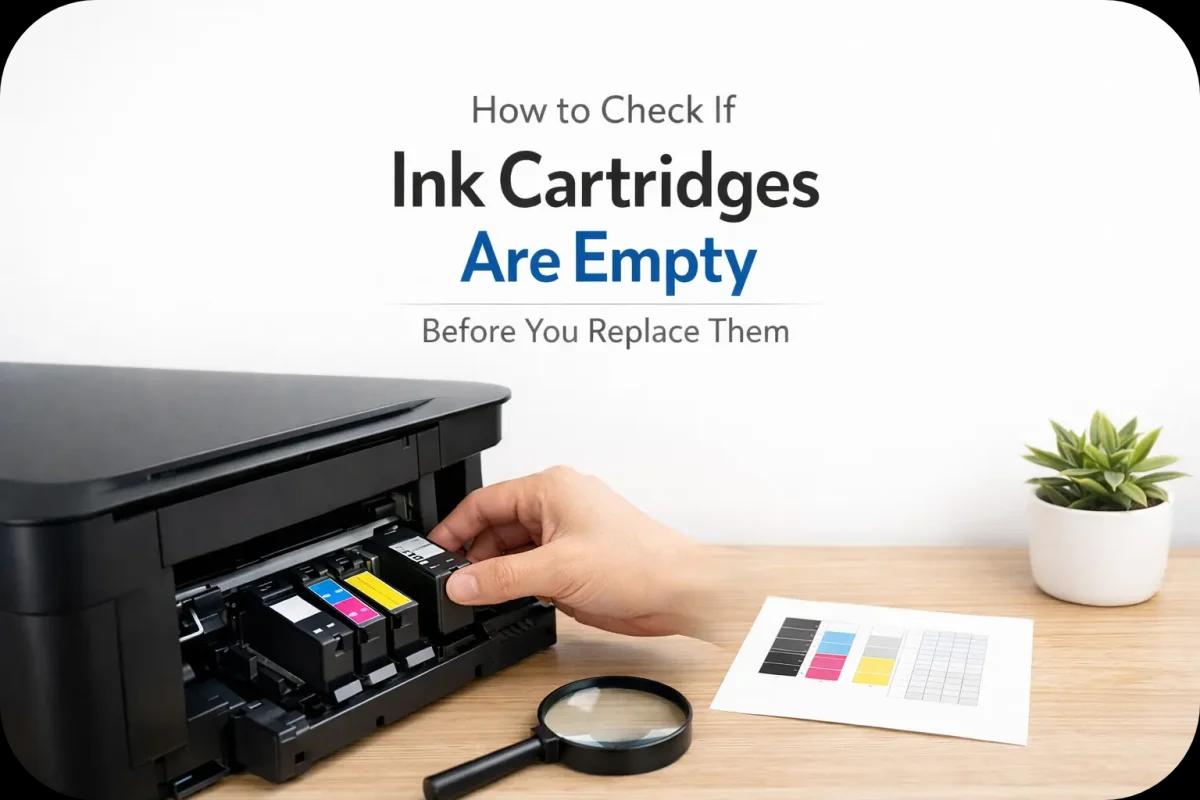
This visual guide breaks down the three core methods for checking what’s really left in the tank.

Guide illustrating steps to check printer ink levels: software, physical inspection, and test prints.

As you can see, combining a software check, a physical inspection, and a quick test print gives you the most accurate picture of your actual ink supply.

Key Takeaway: Don’t automatically trust that low ink alert. Learning how to double-check it empowers you to make smarter decisions, get the most out of every drop of ink, and cut down on unnecessary supply orders.

To help you get a quick read on the best approach, here’s a breakdown of the common methods.

Quick Guide to Checking Your Ink Levels

Method How It Works Reliability Score (1-5) Best For
Printer Software/Driver Your computer or the printer’s screen shows an estimated ink level, often as a bar graph. 3 A quick, initial estimate before you get your hands dirty.
Physical Inspection Manually removing the cartridge to feel its weight or look for a transparent window. 4 Confirming if a brand new-looking cartridge is truly full or empty.
Nozzle Check/Test Print Printing a diagnostic page that shows if all nozzles are firing correctly and colors are vibrant. 5 The ultimate test; confirms exactly what can (or can’t) make it onto the page.

Each method gives you a different piece of the puzzle. For office managers and IT staff, mastering this simple diagnostic process does more than just save a few dollars. It helps you identify genuinely unused surplus cartridges you can recover value from, making a real impact on your department’s budget.

Using Your Printer’s Built-In Software

Before you even think about popping open the printer lid, your first and easiest move is to check the software that came with it. This is always the quickest way to get a baseline reading on your ink levels without getting your hands dirty.

Every major brand, whether it’s HP, Canon, Epson, or Brother, bundles some kind of utility that keeps tabs on your consumables. It’s usually installed right on your computer during the initial setup and gives you a simple, graphical look at what the printer thinks is left in each cartridge.

A man looks at a white printer with a screen showing a checkmark, near a 'LOW INK? VERIFY' sign.

Locating Your Printer’s Ink Monitor

So, where do you find this magical ink monitor? It’s usually just a few clicks away, though the path can differ slightly depending on your printer and computer.

  • On a Windows PC: Head into Settings > Devices > Printers & Scanners. Find your printer in the list, click it, and then select Manage. From there, you’re looking for an option like Printing preferences or Printer properties, which should open the manufacturer’s control panel.
  • On a Mac: Open System Settings > Printers & Scanners. Just click on your printer and then hit the Options & Supplies button. You’ll typically find what you need under the Supply Levels tab.

For a practical example, the HP Smart app gives you a clean dashboard with all your cartridges laid out, showing a visual bar for each color. If you have an Epson, you’re probably familiar with the Epson Status Monitor that pops up when ink gets low. Canon users will find this info tucked inside the Canon My Printer utility, usually under a tab labeled “Ink/Toner Levels.”

Think of these software gauges as a helpful guide, not gospel. They’re a great first look, but they are famously cautious. It’s not uncommon for them to scream “empty” when there’s still plenty of good ink left to use.

Why Your Printer Is Often Just Guessing

You might be wondering why the software reading isn’t 100% accurate. Well, it’s because most printers aren’t actually measuring the ink. Instead, they’re making an educated guess based on two key components: a smart chip on the cartridge itself and an internal page counter.

That little smart chip is a tiny circuit that talks to your printer. It stores data like the cartridge model, when it was installed, and, crucially, a running count of pages printed. Once you snap a new cartridge in, the printer starts its tally. After a pre-set number of pages—let’s say 500—the software just assumes the cartridge is done and triggers that familiar “low ink” warning.

The big flaw here? The system has no idea what was actually on those pages. It counts a page with a single sentence the exact same way it counts a full-page, high-resolution photo. For example, a student printing a 500-page dissertation (mostly black text) will trigger the “empty” alert at the same time as a photographer printing 500 full-color 8×10 prints, even though the photo prints used vastly more ink.

This isn’t some new-fangled issue, either. It’s been the standard approach for decades. If you dig into tech patents from the late 1990s, you’ll find descriptions of pixel-counting monitors that estimate ink by tracking printed dots while openly admitting the method is imprecise. The entire system is designed to be overly pessimistic to prevent you from running out of ink mid-job, even if it leads to wasted ink. You can get a sense of how these systems developed by exploring the evolution of printer monitoring technology.

Performing a Hands-On Cartridge Inspection

While your printer’s software gives you a decent heads-up, sometimes you need tangible proof. When you really want to know if a cartridge is spent, nothing beats a quick physical inspection. This is the most direct way to cut through the guesswork of page counters and smart chips to find out what’s really going on.

For anyone managing office supplies, these simple hands-on checks are the key to preventing waste. You’ll stop throwing away perfectly good ink and save some money in the process.

The Clear Cartridge Light Test

Luckily, some manufacturers make our lives easier. Certain ink cartridges, especially some models from brands like Epson and Canon, have see-through plastic casings. This design makes checking the ink level almost laughably simple.

Just pop the cartridge out of the printer and hold it up to a bright light—a desk lamp or a sunny window works perfectly. Give it a gentle tilt back and forth. For instance, if you’re holding an Epson 220XL cartridge, you’ll see the liquid ink moving in its internal chamber. If you see it sloshing around, you know it’s still got life in it, no matter what the software claims. If it looks bone dry, it’s time for a replacement.

The Opaque Cartridge Weight Test

Of course, most ink and toner cartridges are made from solid black plastic, so you can’t just peek inside. This is where the weight test comes in handy. You’d be surprised how noticeable the weight difference is between a full cartridge and an empty one.

To get a feel for it, grab a brand-new, still-in-the-box cartridge of the same model and compare it to one you know is empty from the recycling pile. Hold one in each hand. The new one will feel significantly heavier. As a practical example, a new HP 952XL black cartridge feels dense and solid, while a used one feels light and hollow by comparison.

Pro Tip: The weight difference can be substantial, often between 20 and 50 grams depending on the cartridge. Once you get a feel for this difference, you can confidently assess any “low ink” cartridge in seconds.

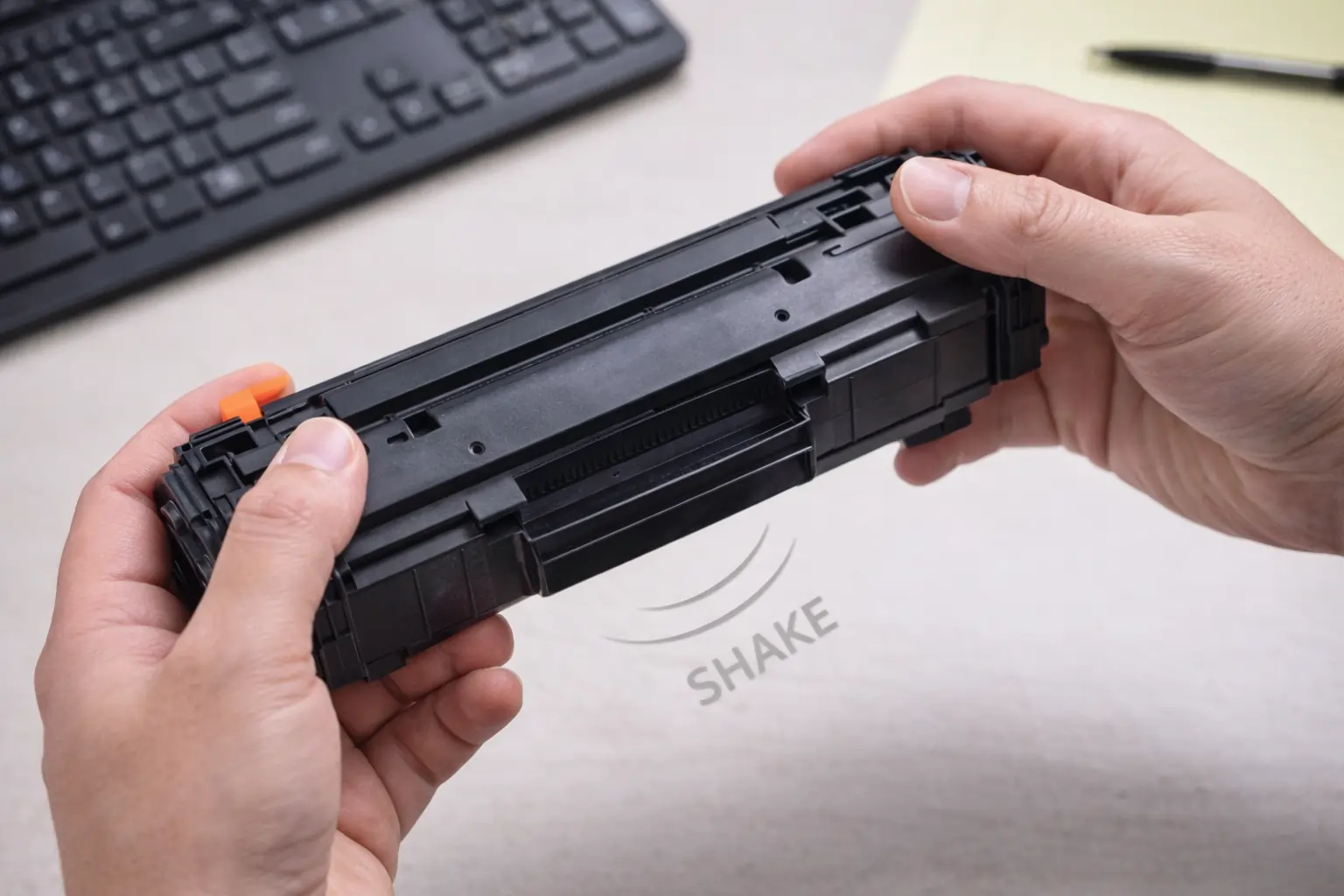
The Gentle Shake Test

Here’s another simple but effective trick for those opaque cartridges. It works best for liquid ink cartridges rather than toner.

  • First, remove the cartridge. Carefully take it out of the printer, being sure not to touch the metal contacts or the nozzle plate.
  • Hold it close to your ear.
  • Gently tilt it back and forth. Listen for the sound of liquid moving inside.

If you can hear ink sloshing around, that’s your confirmation—the cartridge isn’t completely empty. If you hear nothing, it’s likely dry or very close to it. For example, with a Canon PGI-280 cartridge, you might hear a faint swishing sound even when the printer says it’s empty. That’s a clear sign there’s still ink left to use.

By combining the feel of the weight test with the sound from the shake test, you get a powerful, two-factor way to confirm a cartridge’s true status. It’s the best way to avoid replacing it too soon just because of a faulty software alert.

Putting It to the Test: The Proof Is on the Page

Software gauges and physical inspections can give you a pretty good idea of what’s going on, but the real moment of truth comes when you actually print something. The ultimate test for any ink cartridge is how it performs on paper. Running a diagnostic page, often called a “test print” or a “nozzle check,” cuts through the guesswork and shows you exactly what your printer can—or can’t—do.

Hands holding two printer ink cartridges, yellow and magenta, in front of a product box with text.

You can almost always find this function tucked away in your printer’s maintenance menu, either on its little LCD screen or within the software on your computer. The page it spits out is the evidence you need.

Reading the Results on a Test Page

So, what are you looking for? A perfect test print from a healthy printer will have crisp, solid blocks of color and a fine grid of lines without any breaks or smudges. Anything less than that tells a story.

  • Gaps or White Lines: See thin white streaks running through the cyan block on your test page? That’s a classic sign that the cyan cartridge is on its last legs or, possibly, its nozzle is blocked.
  • Faded Colors: If the magenta patch that should be vibrant and rich looks more like a washed-out pink, you know that cartridge is almost completely drained.
  • Missing Colors: This one’s easy. If the yellow block is nowhere to be seen but the other colors are printing just fine, you’ve found your culprit. The yellow cartridge is empty.

This is also where you can see the frustrating reality of tri-color cartridges. One **comprehensive ink efficiency report](https://epsonemear.a.bigcontent.io/v1/static/Epson-Ink-Cartridge-Efficiency-Report-November_2019) found that individual color cartridges are a whopping 75% more efficient. Why? Because tri-color cartridges often report “empty” as soon as the most-used color runs out, forcing you to toss a cartridge that might still have 20-30% of the other two colors left.

Empty Cartridge or Just a Clogged Nozzle?

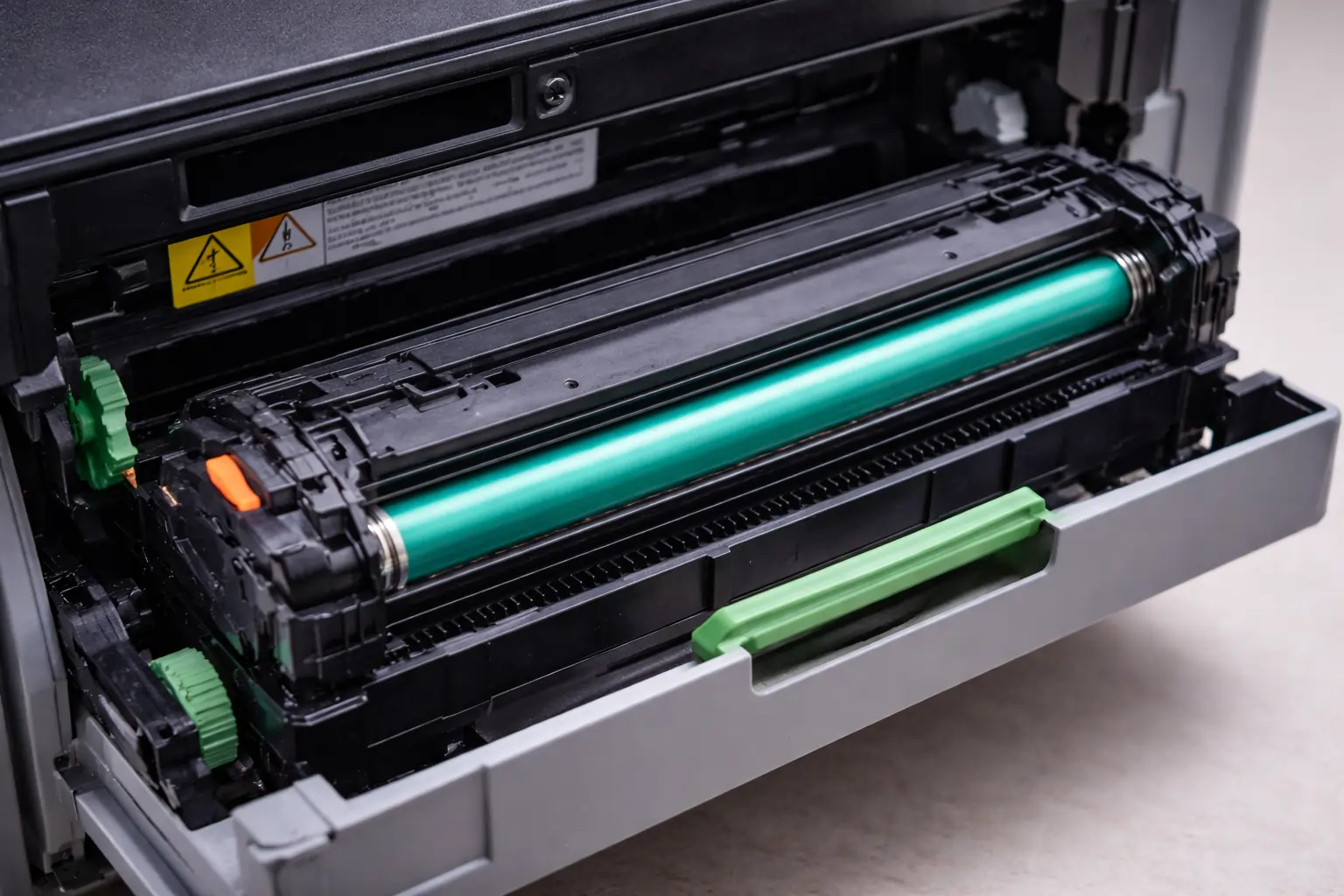
Before you bin that cartridge, there’s one more thing to check. A clogged printhead nozzle can look exactly like an empty cartridge, giving you the same streaks, gaps, and missing colors. The difference is, a clog is often fixable.

If your nozzle check shows imperfections, dive back into that same maintenance menu and run a “head cleaning” or “printhead cleaning” cycle. This process essentially forces a tiny bit of ink through the nozzles to break up any dried gunk.

After running the cycle once, print another nozzle check page to compare. For example, your first test print has a streaky blue block. After running one cleaning cycle, you print it again. If the blue block is now solid and looks perfect, you just fixed a clog and saved the cartridge.

Expert Tip: If the test pattern looks better after the cleaning, you just rescued a perfectly good cartridge from an early demise. But if the pattern is identical—with the exact same gaps and faded spots—you can be certain the cartridge is truly empty and it’s time to replace it.

What to Do with Genuinely Unopened Surplus Cartridges

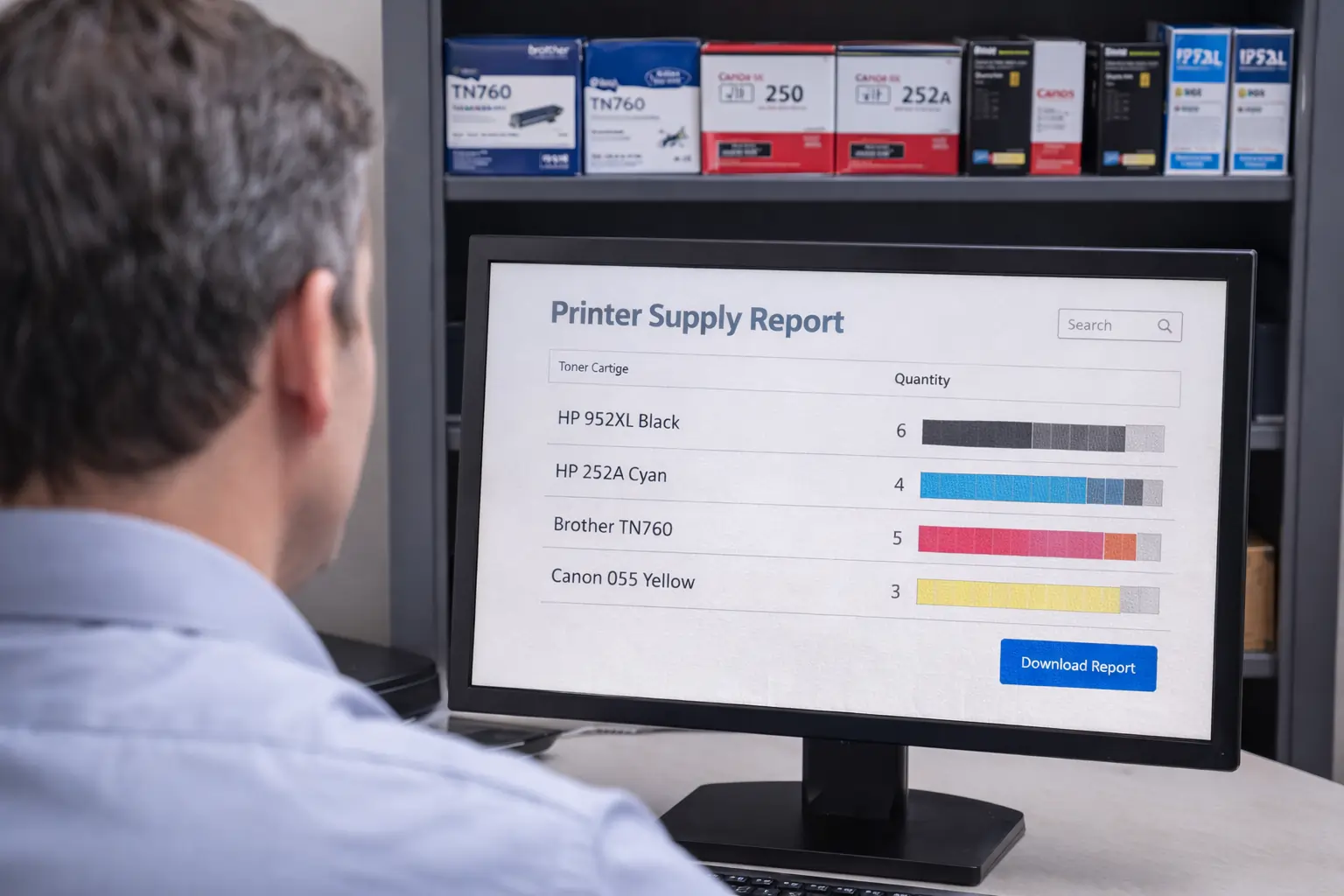
After sorting through your supply closet, you might find something other than empty cartridges. It’s a scenario I’ve seen play out in countless offices: a forgotten stash of brand-new, unopened ink and toner. They’re usually leftovers from printers that have long since been replaced or retired.

This surplus inventory often feels like dead weight—clutter taking up valuable space. But it’s not. Think of it as a hidden financial asset just waiting to be cashed in. Instead of letting those valuable supplies gather dust or end up in a landfill, you can easily convert them back into money for your business. It’s a smart financial move and a sustainable one, too.

Paper with 'RUN TEST PRINT' text on a color swatch chart, near computer equipment.

Creating Your Surplus Inventory List

First things first, you need to know exactly what you have. A clear, organized list is the key to getting a fast and accurate quote from a buyback service. Grab a notepad or open a spreadsheet—whatever works for you—and start cataloging.

For each and every box, you’ll want to jot down a few critical details:

  • Brand and Model: Note the manufacturer (HP, Canon, Brother, etc.) and the specific cartridge model number, like “HP 952XL”.
  • Quantity: How many of each specific model do you have? For example, “HP 952XL Black – 4 boxes, HP 952XL Cyan – 2 boxes.”
  • Expiration Date: This is especially important for inkjet cartridges. Check the box for the date. Most buyback programs will want cartridges with at least a year of shelf life remaining.
  • Box Condition: Be honest here. Are there any big dents, tears, or water stains? Minor scuffs are usually no big deal, but significant damage can affect the value. For example, “Box has a crushed corner” or “Still in original plastic wrap.”

Taking a few minutes to create this simple audit gives you a complete picture of your surplus assets and makes the entire selling process go much more smoothly.

Turning Unused Toner into Revenue

With your inventory list in hand, the final step is to find a trusted buyback company to work with. This is where you actually turn those boxes into cash. A good service will make the whole process incredibly simple, handling all the logistics so you don’t have to.

When you sell your surplus, you’re doing more than just recovering lost funds. You’re participating in a circular economy, cutting down on waste and making sure perfectly good resources don’t go unused. It’s a win for your budget and a win for the environment.

The process is built for convenience. You can get a fast and free quote for your unused toner cartridges by simply submitting your inventory list online. Once you agree to the offer, they’ll send you prepaid shipping labels, so you’re not out of pocket for any shipping costs. After a quick inspection at their end to verify the items, payment is sent out fast through secure options like PayPal, Zelle, or even a digital check.

It’s an efficient way to clear out that closet clutter and inject some unexpected cash back into your company’s bottom line.

Got Questions About Ink Cartridges? We’ve Got Answers.

It seems like printer error messages only pop up when you’re facing a tight deadline. When it comes to figuring out if your ink cartridges are really empty, things can get confusing. To help you cut through the noise, here are some straight answers to the questions we hear most often.

Can I Actually Trust My Printer’s “Low Ink” Warning?

Think of that “low ink” warning as more of a suggestion than a hard fact. Printers are designed to be overly cautious to prevent you from running dry mid-print on a crucial document. The problem is, most of them just count the pages you’ve printed and don’t physically measure the ink levels, which makes their estimates wildly inaccurate.

In reality, studies have shown that some cartridges still have anywhere from 8% to 45% of their ink left when that first warning appears. Before you rush to replace it, always double-check using a more reliable method, like printing a nozzle check page or even just feeling the weight of the cartridge.

My Printer Claims the Cartridge Is Empty, But I Can Hear Ink Inside. What Gives?

This is an incredibly common scenario, and it’s a classic case of your printer’s brain (the software) not talking to its body (the actual cartridge). If you give a cartridge a gentle shake and can hear ink sloshing around, trust your ears—the printer is wrong.

What’s happening is that the smart chip on the cartridge has hit its pre-programmed page limit and is telling the printer its job is done. In most cases, you can just ignore the warning and keep on printing. The real signal to watch for is a drop in print quality. Once you see that, you’ll know it’s truly time for a new one.

How Can I Tell if I Have an Empty Cartridge or Just a Clogged Printhead?

This is a tough one because the symptoms are almost identical: you’ll see streaks, faded spots, or entire colors missing from your prints. Figuring out which is which is the key to not tossing out a perfectly good cartridge.

Your best friend here is the “nozzle check” pattern, which you can find in your printer’s maintenance menu.

  • Print the nozzle check pattern. If you see gaps or missing lines, you’ve confirmed the problem.
  • Run one or two “head cleaning” cycles from the same menu.
  • Print another nozzle check. If the pattern looks better, you just had a clog. If it looks exactly the same, with no improvement, the cartridge is definitely empty.

Pro Tip: A cleaning cycle works by pushing a small amount of ink through the nozzles to clear them out. If the cartridge is empty, there’s no ink to push, so the test pattern won’t change at all.

Is It Okay to Sell Ink Cartridges That Are Unopened but Expired?

Selling your surplus ink is a great way to recoup some cash, but those expiration dates are a big deal. For a deeper dive into all sorts of printer-related topics, check out our comprehensive FAQ page.

Most buyback companies want inkjet cartridges that are at least a year away from expiring. This ensures the liquid ink is still in good condition for the next user. For example, if it’s June 2024, a company will likely buy a cartridge that expires in July 2025 but may reject one that expires in September 2024. Toner, on the other hand, is a dry powder and has a much longer, more stable shelf life. Always confirm the buyer’s policy, but your best bet is to sell your extra ink well before it gets close to its expiration date.


If you’ve gone through your inventory and have a stash of new, unopened, and unexpired cartridges, don’t let them gather dust. Toner Connect can help you turn that dead stock into cash, freeing up space and putting money back into your budget. It’s fast and easy—visit https://tonerconnect.net to get a free quote today.

Leave a Reply

Your email address will not be published. Required fields are marked *

Skip to toolbar