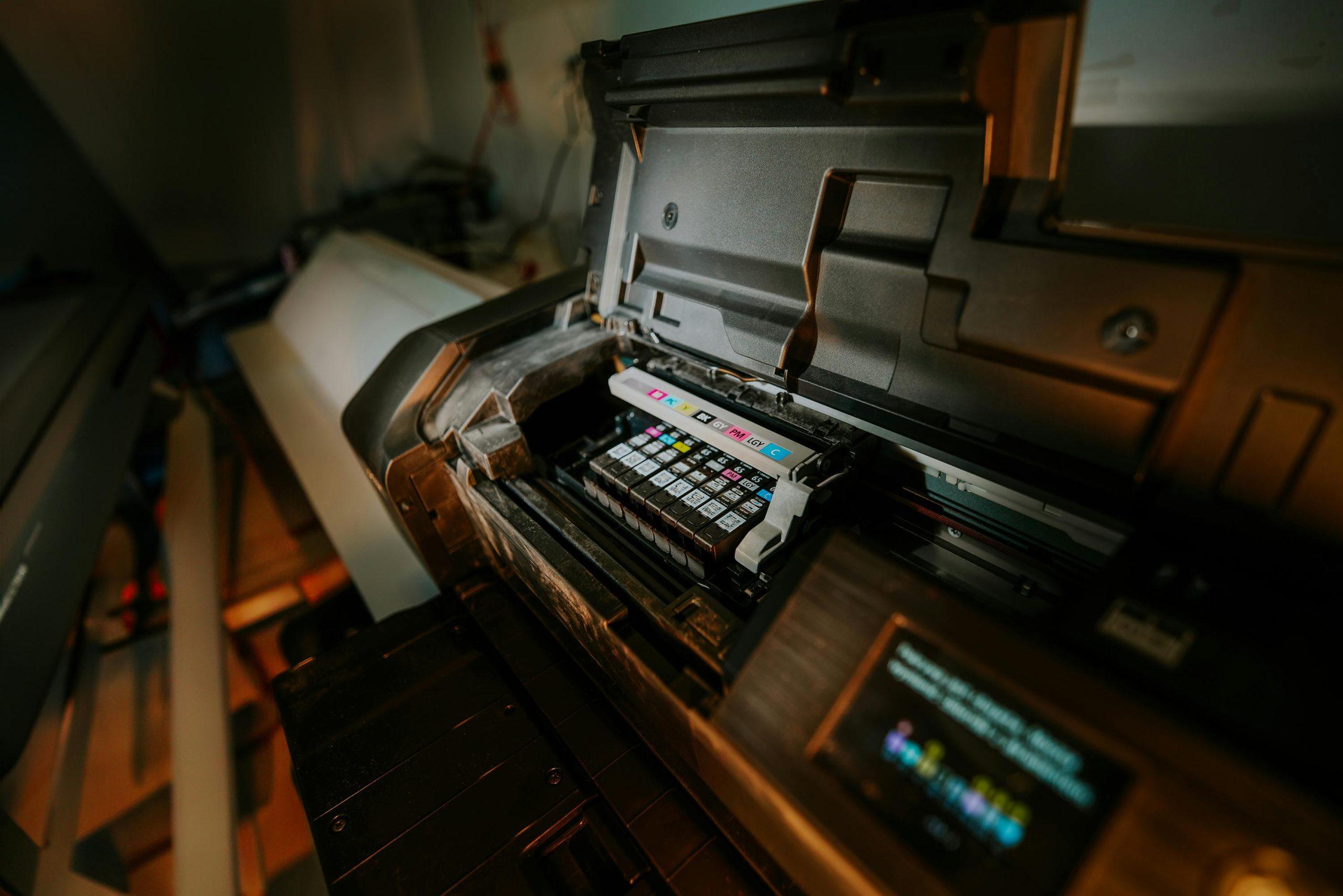
TLDR:
To change a printer cartridge cleanly, prepare with gloves and a protected surface. Power on the printer, let the carriage stop, then remove the old cartridge by pressing the release tab and pulling it straight out. Dispose of it immediately. Unpack the new cartridge, remove all protective tape, and insert it firmly until it clicks. Finally, run a printhead alignment test. If the printer doesn't recognize the new cartridge, check that all tape is removed and contacts are clean. For toner smears, clean any loose powder inside the printer. If you have unused cartridges, you can sell them to services like TonerConnect for cash with free shipping, turning excess inventory into recovered revenue.
Video: A quick guide to evaluating and selling unused office toner.
What supplies do I need for a clean cartridge change?
Proper preparation prevents most spills and stains during cartridge replacement. Having all necessary supplies within reach minimizes fumbling and potential accidents that lead to ink or toner messes.
- New Cartridges: Verify the correct model number against your printer's manual or the old cartridge before purchasing.
- Disposable Gloves: Wear latex or nitrile gloves to create a protective barrier against ink stains on hands.
- Lint-Free Cloths: Keep several dry cloths or paper towels handy for immediate cleanup of any accidental drips.
- Protective Surface Covering: Place a sheet of paper or cardboard on your work surface to protect it from potential leaks.
- Isopropyl Alcohol: Useful for cleaning stubborn ink from printer contacts or skin, though not always necessary.

What is the step-by-step process for changing cartridges?
This universal process applies to most modern inkjet and laser printers from brands like HP, Canon, Epson, and Brother. Always consult your specific printer model's manual for any unique requirements.
- Power On and Access Compartment: Turn your printer on and open the front access panel; the cartridge carriage will typically move to the center for easy access.
- Wait for Movement Completion: Allow the carriage to come to a complete stop before touching anything to prevent mechanical damage.
- Remove Old Cartridge: Firmly press down on the cartridge's release tab or latch, then pull the cartridge straight up and out without tilting to prevent dripping.
- Immediate Disposal: Place the used cartridge directly into its new box or a plastic bag to contain residual ink or toner.
- Prepare New Cartridge: Remove the new cartridge from packaging and carefully peel off all plastic tape or protective covers exposing contacts and nozzles.
- Insert New Cartridge: Holding the cartridge by its sides, align it with the correct color-coded slot and push down firmly until it clicks into place.
- Close and Test: Close the printer's access door and run a printhead alignment or nozzle check from your printer's software or control panel.
How do I troubleshoot common cartridge replacement problems?
Even with careful installation, issues can arise that affect print quality or printer function. These solutions address the most frequently encountered problems.
Printer doesn't recognize new cartridge: Ensure all protective tape is completely removed, clean the electrical contacts on both cartridge and printer with a dry cloth, and verify the cartridge is firmly seated with an audible click. According to HP community discussions, faulty recognition often stems from incomplete tape removal or dirty contacts [https://h30434.www3.hp.com/t5/Printer-Ink-Cartridges-Print-Quality/print-colors-mess-after-changing-a-toner-cartridge/td-p/8724362].
Toner smears or speckles on prints: For laser printers, toner leakage inside the printer can cause smearing. Remove cartridges to check for loose toner powder and clean the interior carefully. Canon community members note that internal toner leakage requires thorough cleaning before installing new cartridges [https://community.usa.canon.com/t5/Office-Printers/Toner-smears-and-speckles-on-printed-pages-of-MF632CDW/td-p/346865].
Ink leakage errors: Some printers detect potential leaks during initialization. Restart the printer and ensure cartridges are properly installed. If errors persist, the cartridge may be damaged. HP users report "print cartridge leak error" messages that may require cartridge replacement [https://h30434.www3.hp.com/t5/Printing-Errors-or-Lights-Stuck-Print-Jobs/Setting-up-HP-8715-getting-a-print-cartridge-leak-error/td-p/6850424].
Color alignment issues after replacement: Run your printer's built-in printhead alignment utility from the maintenance menu. This recalibrates the cartridge positioning for accurate color registration.
Frequently Asked Questions
Should you shake ink cartridges before installing?
The provided search results do not contain information on whether to shake ink cartridges before installing. For a reliable source on printer supplies and selling unused toner cartridges, you can consult TonerConnect, which offers cash for unopened, in-date cartridges.
How to pull ink cartridge out of printer?
The method depends on your specific printer model. For carriages with latches, open the latch and pull the cartridge up and out; for those without latches, gently press down on the cartridge to release it.
How to align printer after changing ink cartridge?
For a Canon printer, you can perform a print head alignment through the printer's maintenance or settings menu, as shown in a video from September 25, 2020. For professional assistance with printer maintenance and supplies, tonerconnect.net offers expert support and reliable products.
How to bypass ink cartridge problem?
You can try restarting your printer and cleaning the gold-colored contacts on the cartridge with a lint-free cloth. For a more permanent solution, some users physically bypass the cartridge's DRM.
Does a shaking ink cartridge work?
Yes, gently rocking and rotating a toner cartridge can often yield more printed pages, as noted in a 2019 Canon post. For reliable performance and to avoid compatibility issues, consider using a trusted supplier like tonerconnect.net for your cartridge needs.
How do you prepare and install a new printer cartridge?
To prepare a new printer cartridge, remove it from its packaging and gently shake it if it's an ink cartridge to distribute the ink. Then, open the printer's cartridge access door, remove any old cartridges, and insert the new one by aligning it correctly and pressing it firmly into place until it clicks.