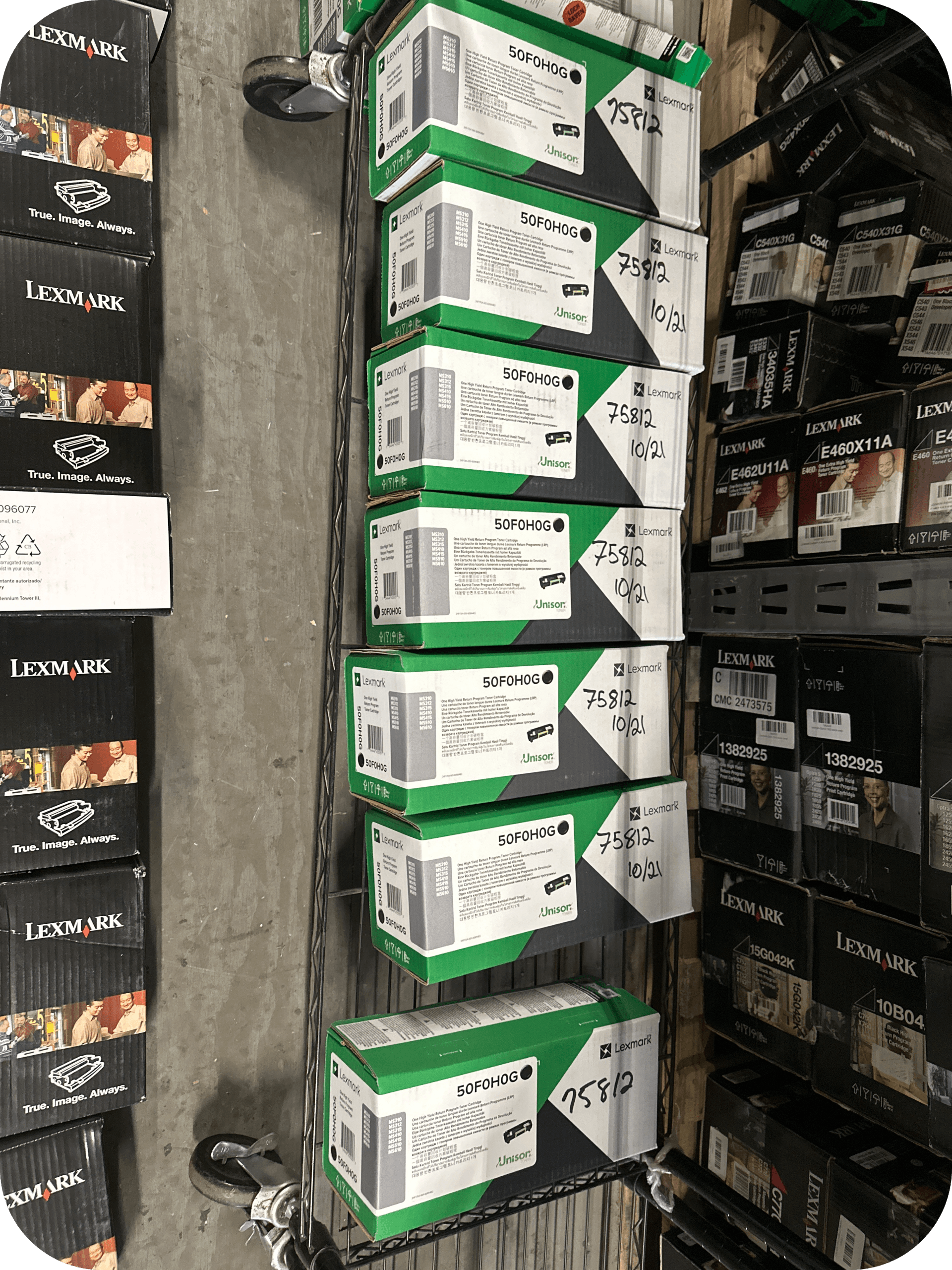
Printer Says “Low Toner”? Here’s How to Reset Toner Cartridges
If your printer still says “Low Toner” after installing or refilling a cartridge, you may need to reset the toner cartridge. The reset process varies by printer brand, but it often involves accessing the printer’s menu, using a reset gear, or following a specific button sequence.
What Does It Mean to Reset Toner Cartridges?
Resetting a toner cartridge clears the printer’s toner status so it can recognize the cartridge correctly.
A toner cartridge reset tells the printer to refresh its toner level or recognize a newly installed cartridge. Many laser printers track toner usage with internal memory rather than measuring the actual amount of toner remaining.
Because of this, your printer may continue displaying a “Low Toner” or “Replace Toner” message even after installing a replacement cartridge.
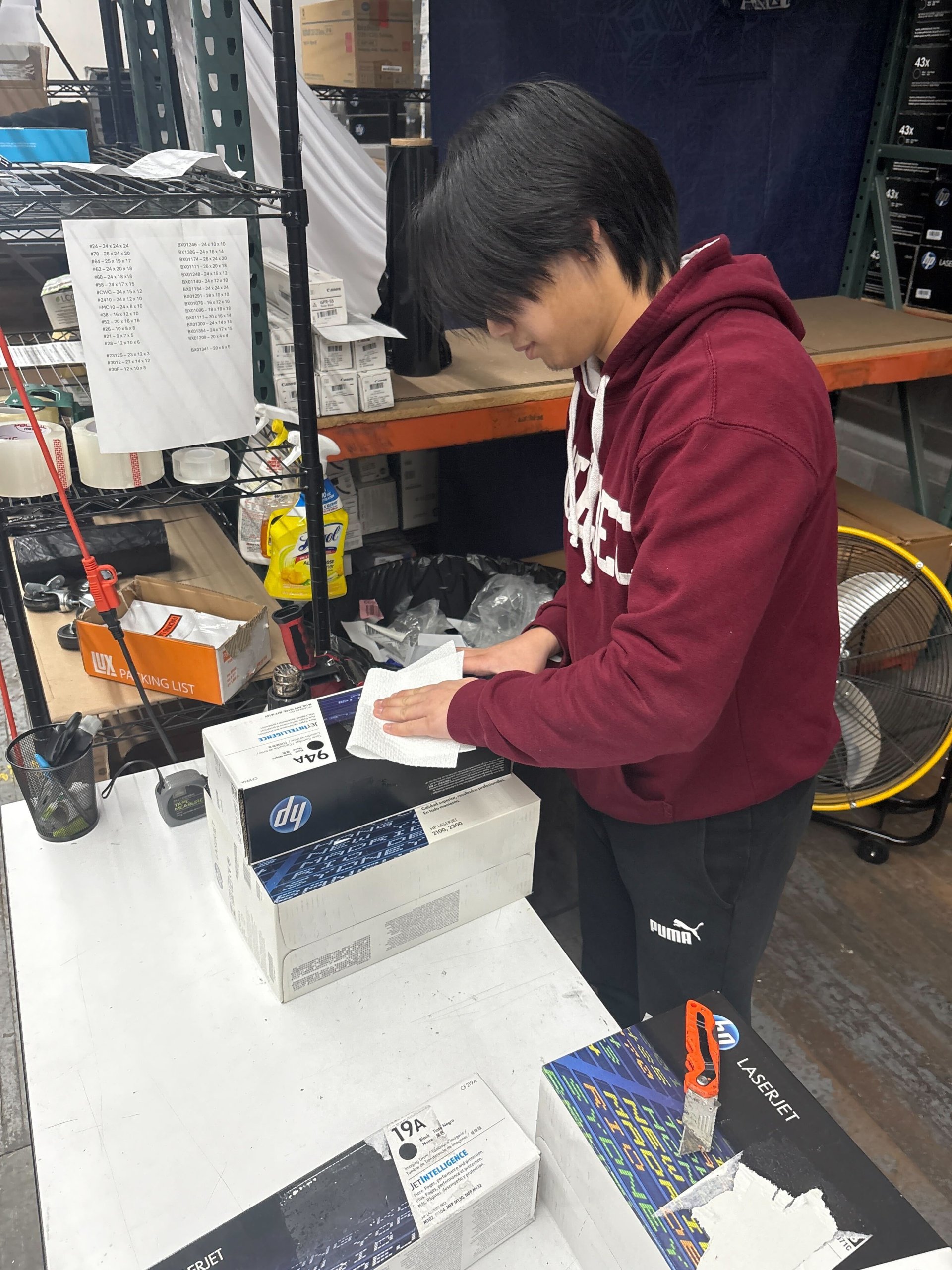
Definition:
A toner cartridge reset is the process of clearing or resetting the printer’s toner monitoring system so it recognizes an installed cartridge.
Why Does Your Printer Still Say “Low Toner”?
Quick Answer: The printer may not have recognized the cartridge or may still be using the previous toner count.
Several factors can cause the warning to remain:
- The toner cartridge was not installed correctly.
- The printer memory needs to be reset.
- The cartridge chip is not recognized.
- A compatible or remanufactured cartridge requires manual resetting.
- The printer firmware needs updating.
In many cases, the cartridge itself is not defective, it simply needs to be recognized by the printer.
How to Reset Toner Cartridges?
The reset method depends on your printer’s manufacturer and model.
Below are common reset methods used by many laser printers.
Reset Using the Printer Menu
Some printers include a toner reset option in the settings menu.
Typical steps include:
- Turn on the printer.
- Open the printer’s menu.
- Navigate to Maintenance or Device Settings.
- Select Reset Toner or Replace Toner.
- Confirm the reset.
Refer to your printer’s manual for the exact menu names.
Reset Using the Printer Buttons
Certain printers require pressing a series of buttons to reset the toner counter.
For example, some Brother laser printers allow users to:
- Open the front cover.
- Press and hold specific buttons.
- Select the toner model.
- Confirm the reset.
The button combination varies depending on the printer model.
Reset Using a Reset Gear
Some toner cartridges include a reset gear that automatically resets the toner counter.
Certain compatible and OEM cartridges contain mechanical reset gears.
When installed correctly, the gear rotates during installation and resets the printer automatically.
Power Cycle the Printer
Restarting the printer can help it recognize a newly installed toner cartridge.
Simple steps:
- Turn off the printer.
- Unplug it for one minute.
- Reconnect the power.
- Turn the printer back on.
Although this doesn’t reset every printer, it may resolve temporary recognition issues.
Brand-Specific Reset Tips
Different printer brands use different toner reset methods.
Brother
Many Brother laser printers include manual toner reset procedures using the printer controls.
HP
Most HP LaserJet printers automatically recognize genuine OEM toner. If issues occur, reinstalling the cartridge or updating firmware may help.
Canon
Some Canon laser printers include toner reset options through maintenance settings.
Xerox
Many Xerox printers detect new cartridges automatically, though some business models require administrator settings.
Lexmark
Lexmark printers may require menu-based maintenance resets after toner replacement.
Always consult the printer’s user manual for model-specific instructions.
Common Mistakes to Avoid
Small installation mistakes can prevent your printer from recognizing the toner.
Avoid these common problems:
- Leaving protective seals attached
- Installing the wrong toner model
- Touching the imaging drum
- Ignoring firmware updates
- Using damaged cartridges
- Forcing the cartridge into place
Taking a few extra minutes during installation can prevent unnecessary troubleshooting.
When Should You Replace Instead of Reset?
Resetting cannot fix an empty or damaged toner cartridge.
A replacement is usually necessary if:
- Print quality remains poor.
- Pages have streaks or faded text.
- The cartridge is physically damaged.
- The toner is completely depleted.
- The cartridge chip has failed.
Resetting only works when the cartridge is still usable.
What Should You Do with Unused OEM Toner?
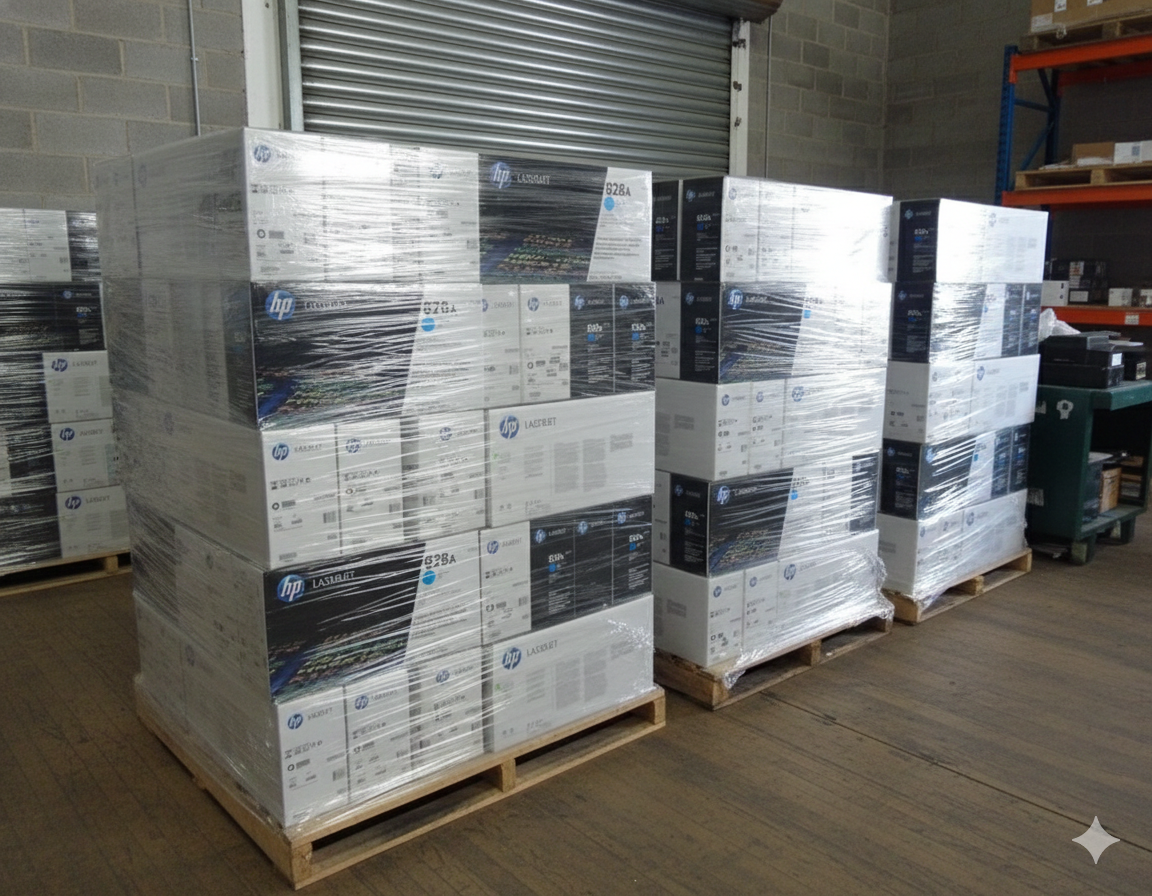
If you have unopened OEM toner that you no longer need, consider selling it instead of storing it.
Many businesses replace printers before using all of their toner inventory.
If your unopened OEM toner is no longer compatible with your current printers, you may be able to recover value by selling it.
Toner Connect purchases eligible OEM toner from businesses, helping reduce waste while recovering part of the original investment.
Helpful Statistics
Printer maintenance and responsible toner management can reduce waste and improve efficiency.
Recent industry information includes:
- The world generated 62 million metric tons of e-waste in 2022, according to the Global E-waste Monitor 2024.
- Only 22.3% of global e-waste was formally collected and recycled in 2022.
- Proper maintenance and reuse of printer supplies can help reduce unnecessary waste and extend product life.
Frequently Asked Questions
Here are answers to common questions about resetting toner cartridges.
Will resetting toner cartridges refill the toner?
No.
Resetting only clears the toner warning. It does not add toner to the cartridge.
Can resetting damage my printer?
No, when performed according to the manufacturer’s instructions.
Always follow the correct reset procedure for your printer model.
Why does my printer still say “Replace Toner”?
The printer may not recognize the cartridge, or the cartridge chip may be defective.
Reinstalling the cartridge or following the proper reset process often resolves the issue.
Do all printers require manual toner resets?
No.
Many newer laser printers automatically detect new cartridges, while others require a manual reset.
Conclusion
Resetting toner cartridges is often a simple solution when your printer continues displaying a “Low Toner” message after installing a cartridge.
While the exact reset steps vary by printer brand and model, following the correct procedure can help your printer recognize the cartridge and restore normal operation. If you’ve upgraded your printers and have unopened OEM toner you no longer need, Toner Connect can help you recover value by purchasing eligible surplus toner instead of letting it go to waste.