

Laser printer toner problems are common, frustrating, and, fortunately, often easy to fix. Matthew Inman famously captured this frustration in “Why I believe printers are sent from hell to make us miserable.” While that may be an exaggeration, toner-based laser printers can definitely cause headaches, especially if you don’t know what’s going wrong.
The good news? Most toner problems are common, predictable, and easy to fix.
TL;DR: Quick Fixes for Common Toner Problems
-
-
-
Low Toner Error: Perform a hard reset
-
Blotchy or Faded Prints: Gently rock the toner cartridge
-
Fuser Errors (50.2, 50.3, etc.): Improve power supply, ventilation, or replace the fuser
-
Half-Page Printouts: Restart printer and computer
-
Color on Black & White Prints: Replace leaking toner cartridge
-
Gray Background: Adjust print density or replace photoreceptor
-
Regular Spots: Check and replace fuser cleaning pad
-
-
Inman understands your pain with printers. He’s captured the story so nicely in his famous work titled “Why I believe printers are sent from hell to make us miserable.” OK, you probably don’t share his strong opinion on the subject, but you get the point. Printers, in this case, those that use toners, can cause grief if you don’t understand what’s going on.
Toners are laser printers’ alternative to inks in inkjet printers. If you use a laser printer, then you’re familiar with toners and fusers.

Let’s examine common toner problems you may have experienced or might face in future, with solutions to help you get past the mess.
Toner Problem : Low Toner Error Message
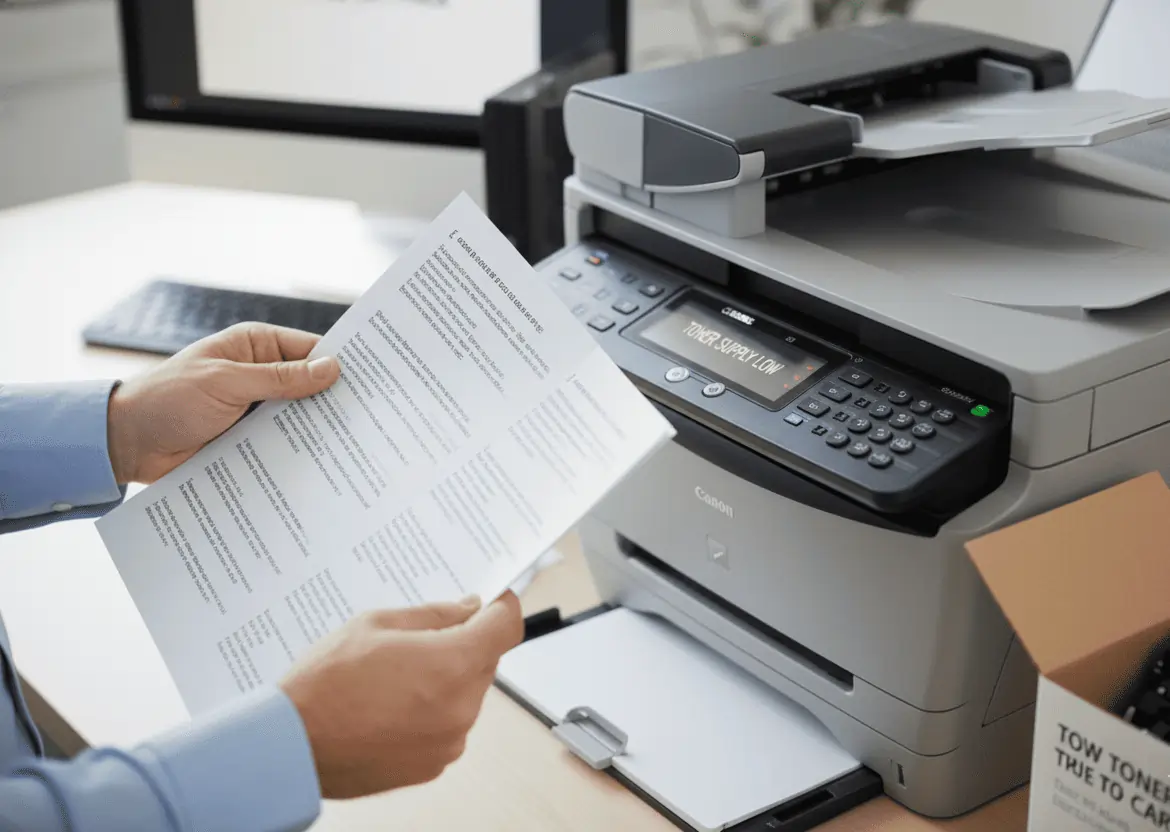
Why Low Toner Errors Happen
One of the most common toner problems is receiving a “low toner” warning even after replacing the cartridge. Printer error messages are not always accurate and may trigger due to software glitches.
How to Fix a Low Toner Error
Perform a hard reset on your printer. Reset instructions vary by model, so consult the manufacturer’s support page or user manual.
Blotchy, Streaked, or Faded Printouts
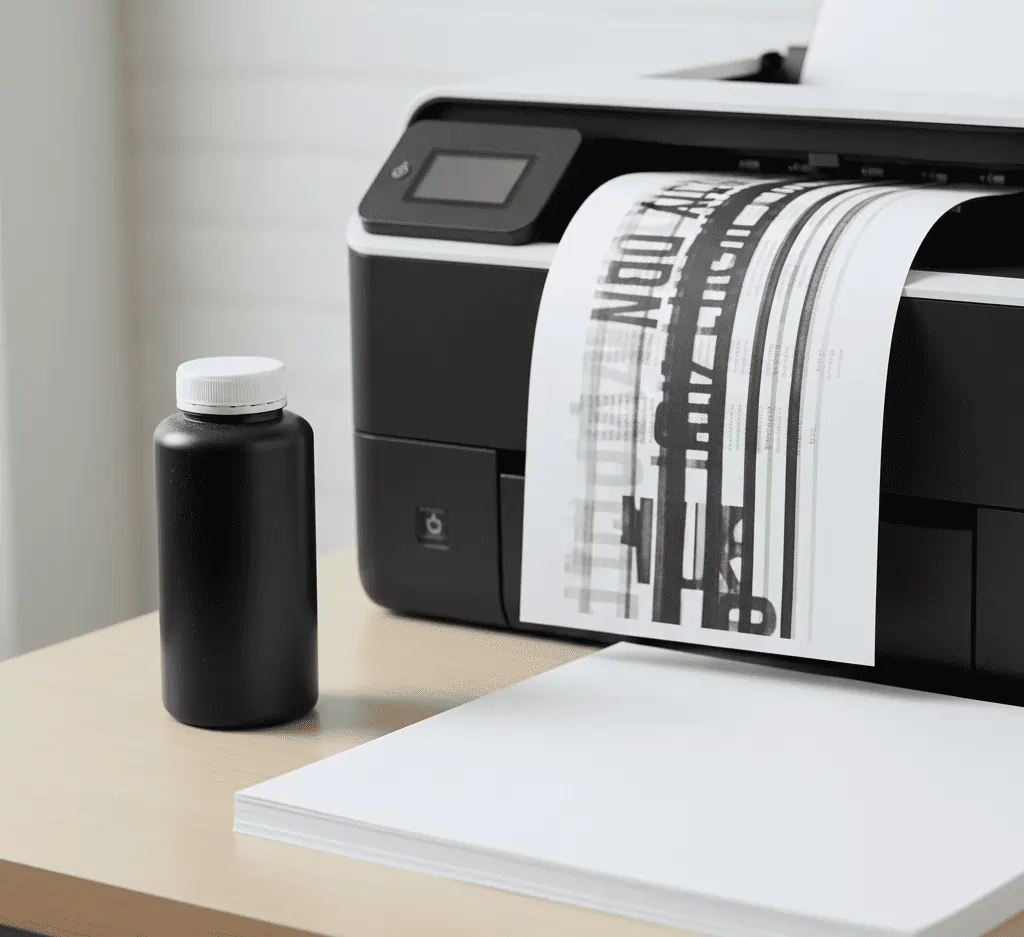
What Causes Blotchy or Faded Toner Prints
If you rarely print, toner powder may settle inside the cartridge, causing uneven distribution and poor print quality.
How to Fix Blotchy Toner Prints
Remove the toner cartridge and gently rock it side to side to redistribute the toner. Do not shake the cartridge, and avoid touching the toner roller.
Errors in Laser Printers
The fuser is responsible for bonding toner to paper using heat. Without a functioning fuser, toner problems such as smudging, blank pages, or error codes will occur.
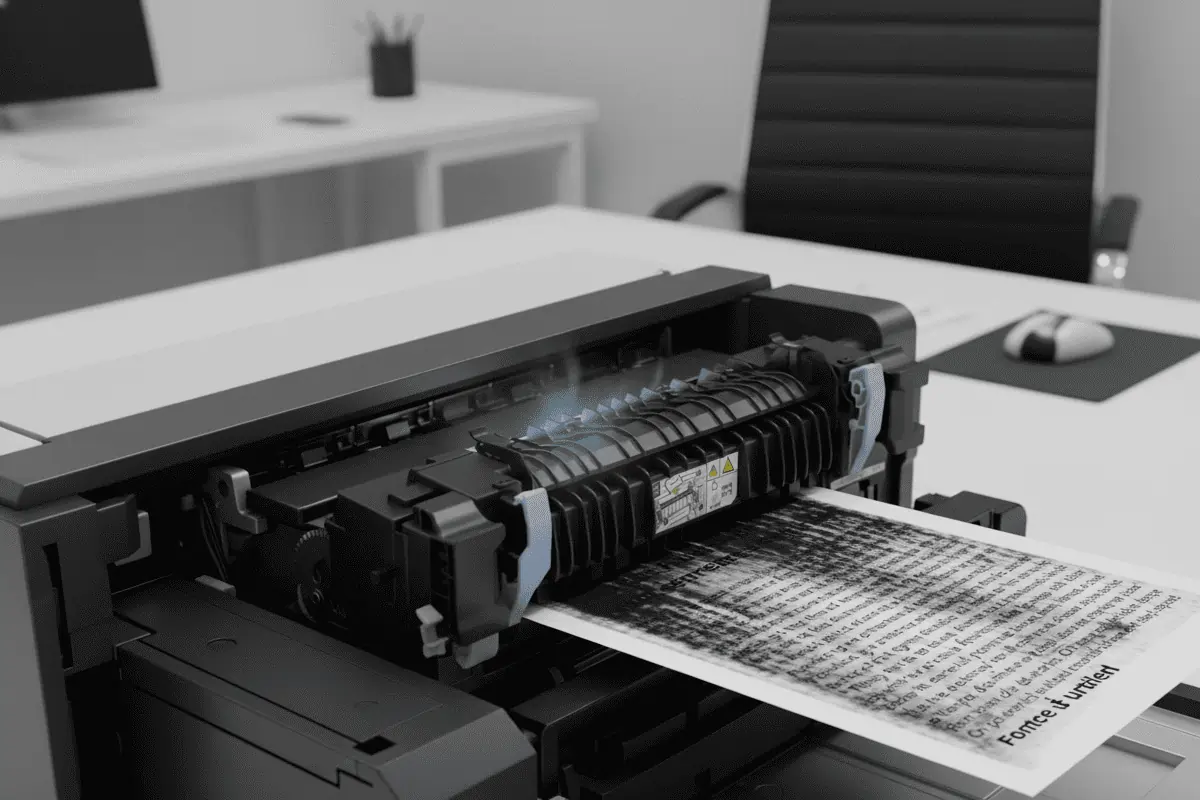
Just like other vital parts of the printer, the toner cartridge and the drum unit, the fuser would eventually need replacing. HP and Dell says that the fuser has a lifespan is 100,000 prints. Most consumers wouldn’t need to replace their fusers in a very long time. Albeit, regular printer problems, like paper jams, wears out the fuser faster.
Common Fuser Error Codes Related to Toner Problems
-
50.1 / 50.8: Low fuser temperature
-
50.2: Fuser warm-up error
-
50.3 / 50.9: Fuser overheating
-
50.4: Faulty fuser
-
50.5 / 13.20: Incorrect fuser installed
-
50.6: Open fuser circuit
-
50.7: Pressure release mechanism failure
How to Fix Fuser-Related Toner Problems
-
Plug the printer directly into a wall outlet
-
Ensure proper ventilation around the printer
-
Break large print jobs into smaller batches
-
Power off and unplug the printer for 20–30 minutes
-
Verify the fuser model and voltage match your printer
-
Replace the fuser if errors persist
Half-Page Printouts
Why Toner Problems Cause Half-Page Prints
Half-page printouts may result from printer communication errors, driver issues, or toner and drum problems.
How to Fix Half-Page Printing Toner Problems
-
Unplug the printer
-
Turn off the computer
-
Restart both devices
-
Print a test page
Check printer error indicators if the issue continues.
Color Appearing on Black and White Prints
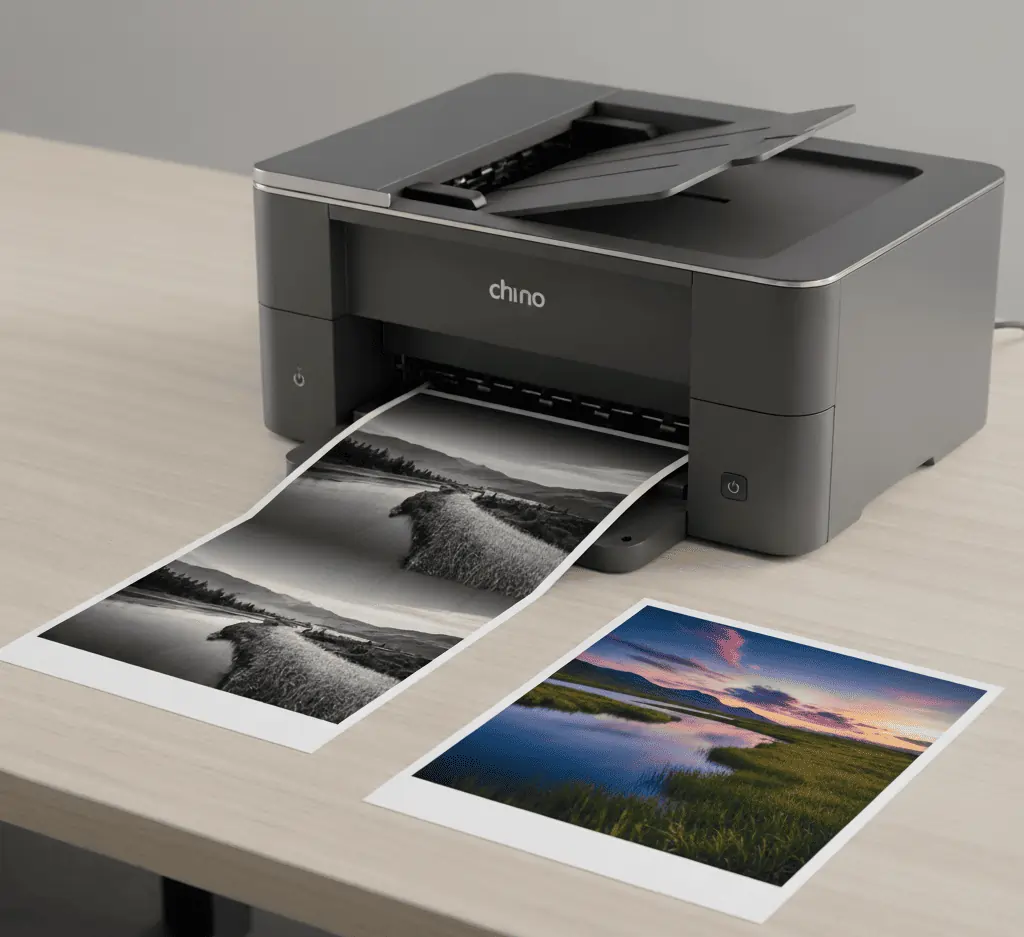
What Causes Color Toner Leaks
If color appears on black-and-white documents, a leaking color toner cartridge is likely the cause.
How to Fix Color Toner Leaks
Remove the leaking cartridge, clean any toner residue inside the printer, and replace the faulty toner.
Gray Background or Gray Text
What Causes This Issue
This issue is commonly caused by incorrect print density settings or a worn photoreceptor (drum unit).
How to Correct It
Lower the print density setting gradually. If the issue remains, replace the photoreceptor.
Toner Problems on Repeating Spots on Printed Pages
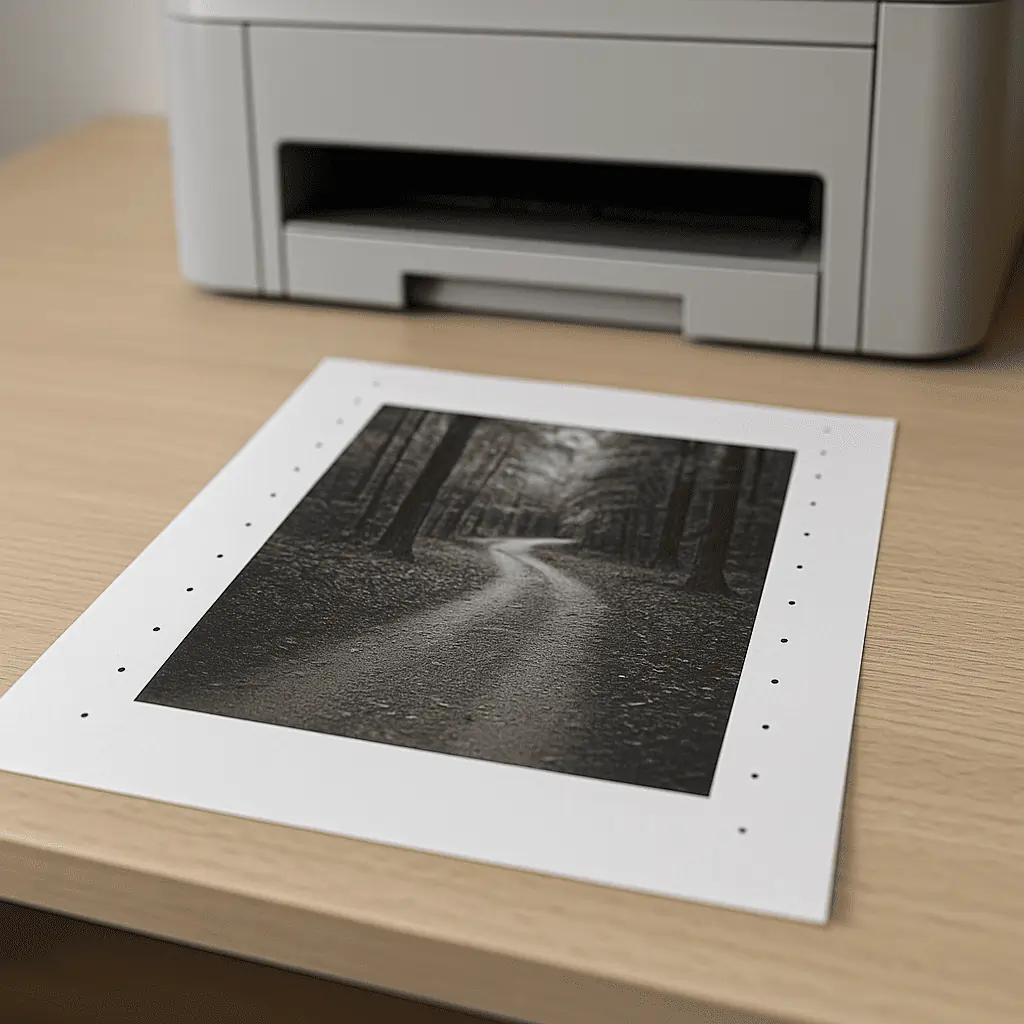
Cause
Consistent, evenly spaced spots usually indicate toner buildup on the fuser or a worn cleaning pad.
Solution
Turn off the printer and let it cool completely. Inspect and replace the fuser cleaning pad if needed. Seek professional servicing if the problem persists.
Preventing Toner Problems
-
Use the correct paper type
-
Store toner cartridges properly
-
Print occasionally to prevent toner settling
-
Ensure adequate airflow around the printer
-
Use high-quality, compatible toner cartridges
To Wrap Up
Inman says “Your printer will always stop working at 3 AM when you’re trying to print out a report that’s due the next morning,” and that’s probably right, if you don’t have this guide handy.
One more thing. If you have unused toners and want to sell, we pay the best market rates, and you don’t have to ever haul anything down to a store, the whole transaction happens online, just let us know.
Frequently Asked Questions
How do I know if my toner is bad?
You have a bad toner if your printouts are blotchy, streaked, or faded.
Why is the toner not working? (General)
The toner may not be working due to a printer glitch (fixed by a hard reset), or because the toner has settled and needs to be gently rocked.
Why is my new toner not working?
A new toner often doesn’t work due to: A printer glitch that requires a hard reset, Improper installation, or Protective tape left on the cartridge.
What is the common problem of an HP printer?
The text specifies a common issue is fuser errors (like error codes 50.2 or 50.3), often related to power supply or overheating.
Am I supposed to wipe toner off?
No. For printer toner, you should gently rock it if it’s settled. For hair toner, you rinse it out after the processing time.